


How to Fix Flash Drive Not Showing Up on Windows
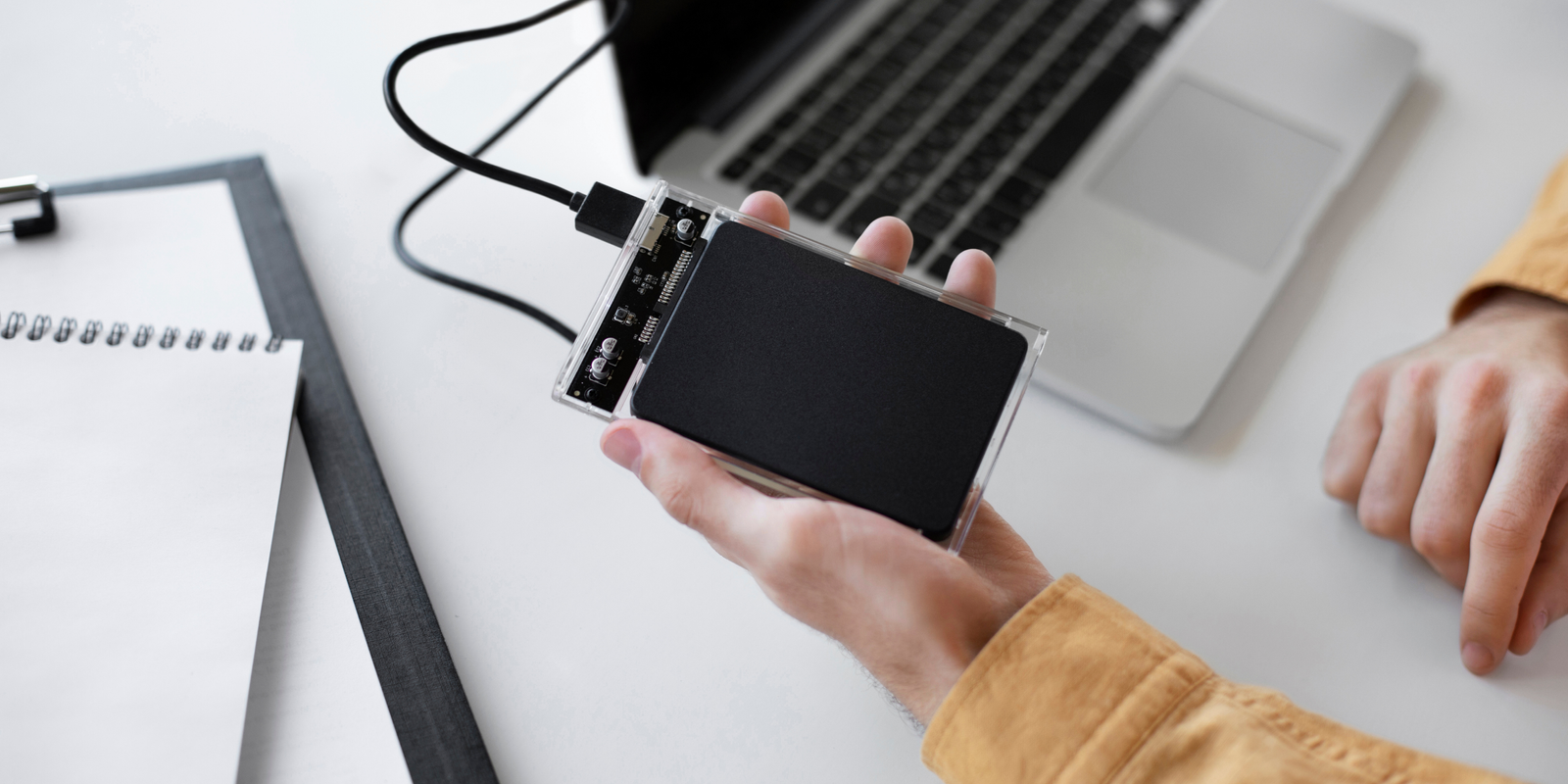
USB flash drives are inarguably the most convenient option for storing and transferring files; however, there are situations when you might not see your file connected to a Windows computer. Well, this issue can happen due to numerous reasons, such as connectivity problems, outdated drives, or even incorrect system settings, but you will be happy to know that there are a few steps that you can adhere to when you wish to fix the issue of the USB drive not showing up.
Method 1: Ensure that the USB port is not damaged
The first thing that you need to do when you cannot see your USB drive is to check whether the USB port is not damaged. Sometimes, a loose connection can also prevent the computer from detecting the device, and this also makes it clear whether the issue is with your computer or the USB.
Method 2: Check Disk Management
Still can't find your flash drive in File Explorer? Try Disk Management next. Hit Windows + X, then choose Disk Management from the menu. Take a look through the list of disks. If you see your USB drive, but it doesn’t have a letter assigned, right-click on it. Here, you need to choose “Change Drive Letter and Paths,” and make sure to rename it. That should make the drive show up in File Explorer.
Method 3: Restart your computer
There are certain situations when a simple restart can fix your issue easily. If your device is facing a technical glitch, then you can very easily resolve the issue by refreshing or simply restarting your computer. In case the issue still persists, you can move to the next method.
Method 4: Update or Reinstall USB Drivers
Sometimes, the flash drive not showing up issue can happen if the USB drivers are outdated or corrupted. To resolve the issue, you need to access ‘Device Manager’ and look for the ‘Universal Serial Bus controllers’ section. Find your USB device, right-click it, and select “Update driver.” If that doesn’t do the trick, uninstall the device instead, then restart your computer. Windows will reinstall the driver automatically.
While these methods will resolve the issue, you can also refer to the website Datarecovee to explore other methods that you can use.
Categorías
Read More
Journey into the Magical Realm: Harry Potter Exhibition Now Available Virtually Step into the enchanting world of wizardry without leaving your living room! The renowned Harry Potter: A History of Magic exhibition from the British Library has been transformed into a digital experience accessible through Google Arts & Culture. This virtual treasure trove offers an immersive adventure for...

May 2017 Netflix ISP Speed Index Shows Significant Improvements Several internet service providers demonstrated notable performance enhancements in the latest Netflix streaming quality assessment. The May 2017 data revealed impressive speed increases across multiple regions worldwide. Australian subscribers benefited from Telstra's remarkable improvement, with speeds jumping by 0.46 Mbps to...
Custom Watch Boxes A watch is not a simple device to measure time, but a sign of workmanship, individuality, and value. The manner in which a watch is packaged is a significant factor in influencing the view of buyers. Custom watch boxes turn a commodity into an experience and also offer protection, display, and brand narrative. In the case of luxury brands, non-commissioned watchmakers, and...

The Data Center Cooling market has moved from being a technical afterthought to a boardroom priority. As global data consumption explodes—driven by cloud computing, artificial intelligence (AI), streaming services, and enterprise digitization—cooling infrastructure has become essential to operational continuity. Servers generate heat. Lots of it. Without efficient cooling,...
Anticipation is building as MLB The Show 25 prepares to release its upcoming roster update scheduled for this Friday at noon PST (3 PM EST). Fans of Diamond Dynasty are especially eager, knowing that such updates often bring significant player upgrades, particularly for those who invest in live series cards aiming for a quick overall boost and increased market value. As the clock winds down to...